 The AI Tool Shelf
- Pictory's URL to video turned our article into an accurate script, a natural AI voice and matching visuals in minutes.
- The free trial gives 14 days and 50 AI credits; the editor estimated 26 credits, but our balance was still 50 after the free watermarked export.
- The free export was Full HD (1920×1080) but carries a small "Created with Pictory" badge and a Pictory outro.
- It ran longer than the length we chose, and our first attempt failed, though no credits were deducted.
Pictory promises to turn a blog post into a ready-to-share video in a few clicks. We wanted to see how well that works on a real article, so we took one of our own guides, How to Dub YouTube Videos into Other Languages with AI, and turned it into a two-minute YouTube video on Pictory's free trial. Here is every step, what went wrong, what impressed us and what the free trial really gives you.
What you get with the free trial
After signing up, our account started a 14-day free trial with 50 AI credits, shown at the top of the screen. The home page offers two ways to start: type an idea in a prompt box, or pick a tool. The tools cover most ways people make videos:
- Text to video and URL to video, for scripts and blog posts
- AI video editor and Summarize video, for existing footage
- Audio to video, Images to video, PPT to video and Doc to video
- Record, to capture your screen or camera
For a blog post, URL to video is the obvious choice, so that is what we used.
Step 1: Paste your article link
We pasted the address of our guide. Pictory loaded a small preview of the page, which confirmed it could read the article. Below that, you choose a video type (Explainer, Training, Marketing, Internal communication and more), describe what the video should focus on, and pick the platform and length. We chose Explainer, YouTube and the shortest option, 30 seconds to 1 minute.
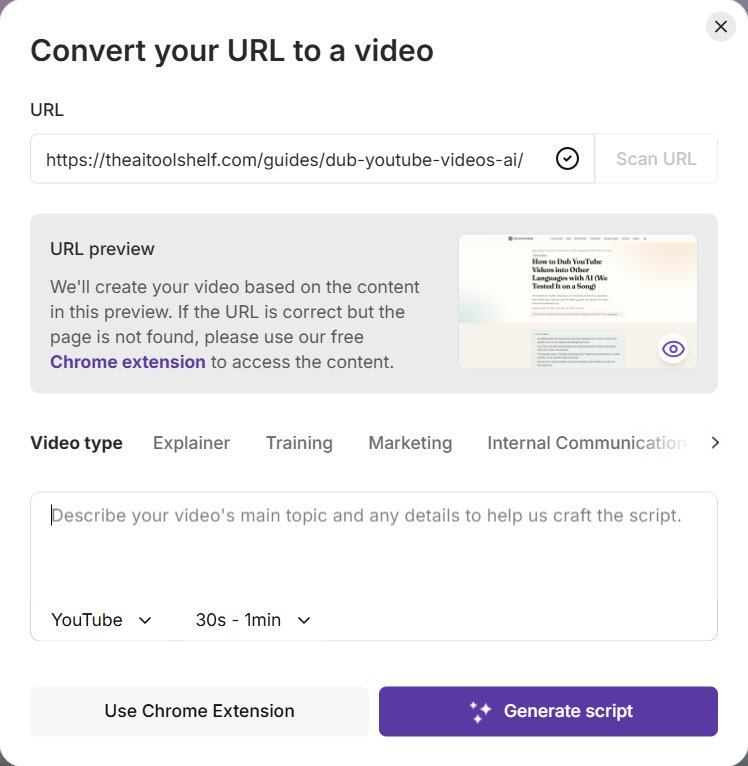
If a page cannot be read (for example, behind a login), Pictory suggests its Chrome extension to capture the content instead.
Step 2: Check the script
Pictory then wrote a script from the article. This is the step that matters most, and it did it well. The summary was accurate: it covered our song test in Japanese, the melody and voice being kept, the free-plan watermark and 480p limit, the advice to have a native speaker check the translation, and it ended by sending viewers to our site to read the full guide.
Two small things to watch:
- It added a little enthusiasm. It wrote that the dub kept the melody "perfectly", a stronger word than we used. Read the script and remove anything you would not say yourself.
- It ran longer than asked. We chose 30 seconds to 1 minute, but the estimated duration was 1:34, and the final video was just over two minutes.
You can edit the script directly or use the built-in buttons to shorten, rephrase or change its tone. On the same screen you pick the format (16:9 for YouTube, 9:16 for Shorts and Reels, or 1:1) and how the script is split into scenes; we kept one scene per sentence, with keywords highlighted.
Step 3: Choose visuals and voice
The next screen sets the look and sound of the video:
- Visual source: let Pictory choose stock and AI visuals automatically, choose the sources yourself, or use no visuals.
- Narration: an AI voice, an AI avatar, or no narration. We kept the default AI voice.
- Brand and theme: optional, for your own logo, colours and fonts. A nice surprise: shortly after our test, Pictory emailed us to say it had created a Brand Kit based on our website automatically, ready to select for future videos.
This screen also shows an estimated AI credit cost. For our video it was 26 credits, about half of the 50 included in the trial. In practice, our balance was still 50 credits after we generated the free watermarked version, so the estimate looked like the worst case rather than what we actually paid. Credit rules change, so keep an eye on the counter at the top of the screen as you work.
Step 4: Our first attempt failed
On our first try, Pictory showed a "Storyboard creation failed" message and asked us to go back and start again. The good news: no credits were deducted for the failed attempt. We simply started again, and the second attempt worked without problems. It is worth knowing so you don't panic if it happens to you.
Step 5: Review the storyboard
The result opens in an editor that Pictory calls the storyboard. Our video had 29 scenes over about two minutes. Each scene shows its sentence on the left and its visual in the centre, with a timeline at the bottom.
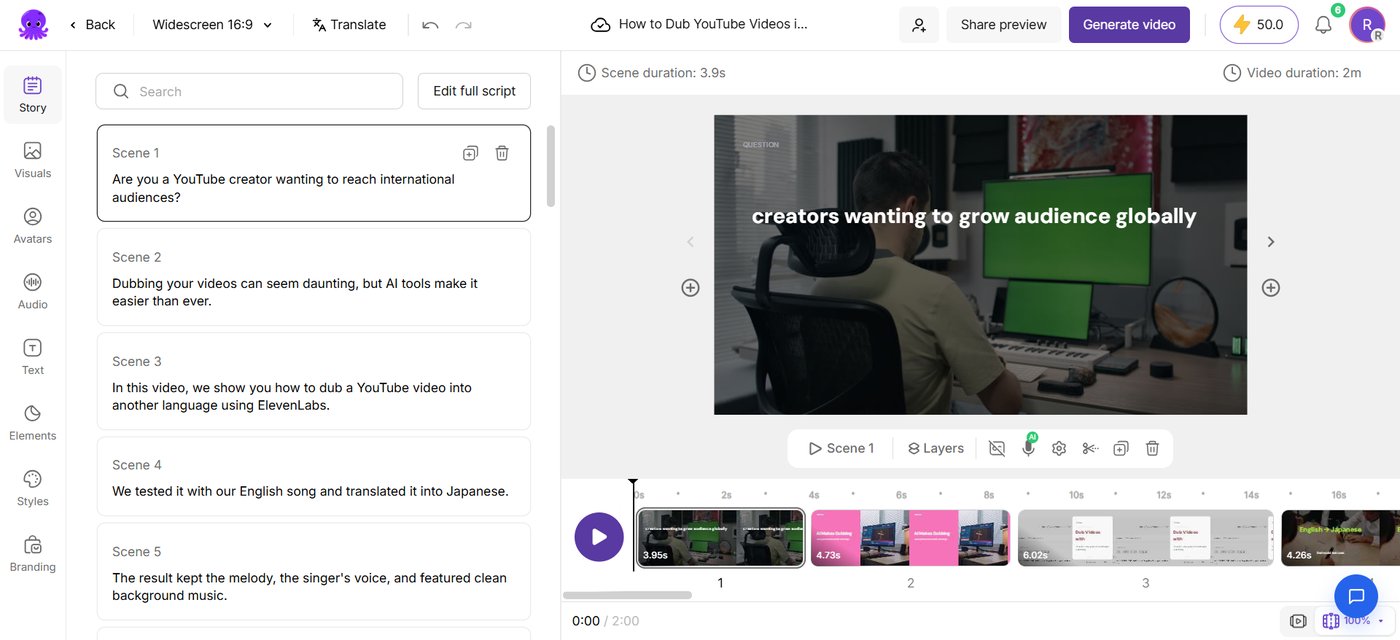
Pictory had also reworked the script to suit a video, adding lines such as "In this video, we show you how to dub a YouTube video into another language" and splitting long sentences into shorter scenes. Previewing the video is free, so watch it all before you spend credits. Our verdict after watching:
- The voice sounded natural, not robotic.
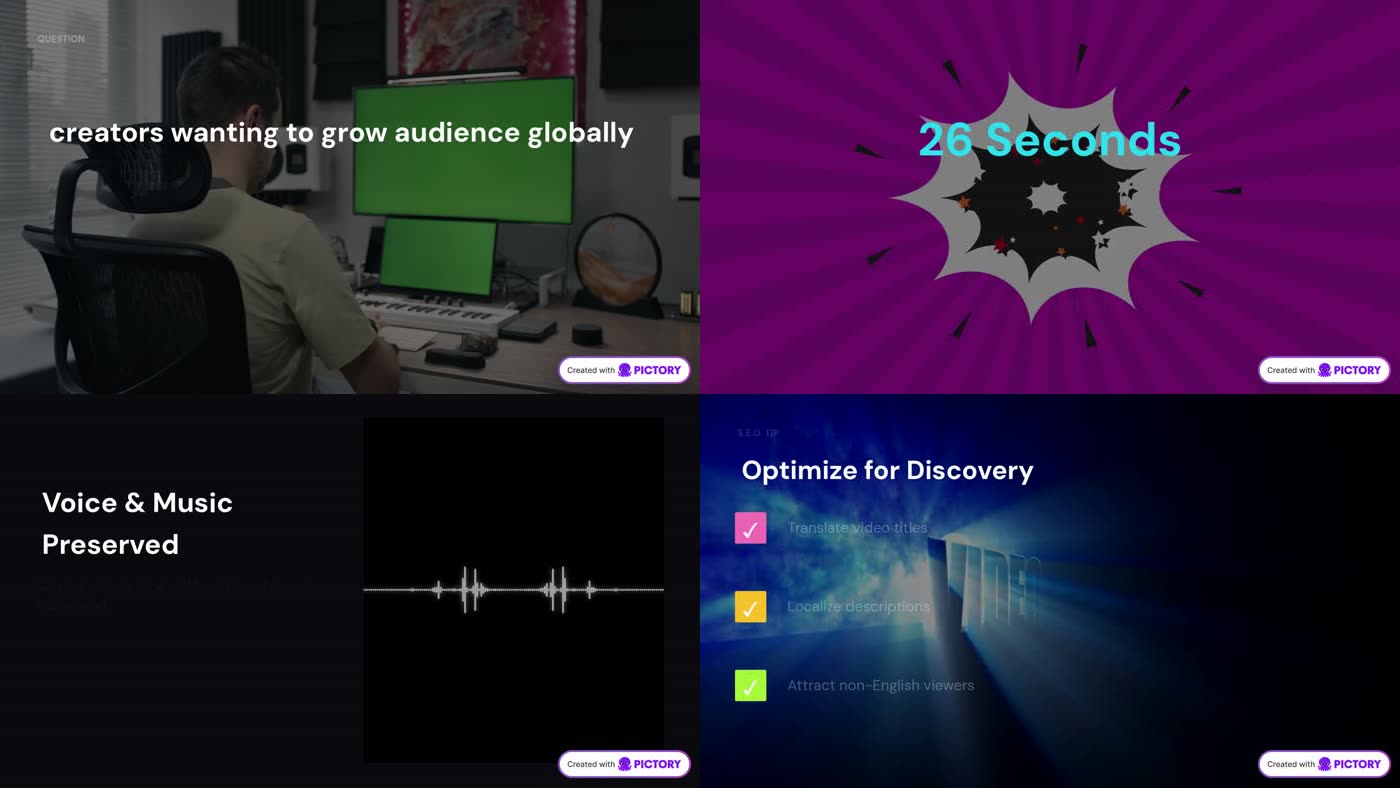
- The visuals matched what was being said: a creator at a desk for the intro, "English → Japanese" over a language class, Japanese text on screen when the dub is described, a sound wave for "voice and music preserved".
- It added an end card on its own, titled "Read the Full Guide" with a "Visit theaitoolshelf.com" button. For anyone repurposing blog posts, that is exactly the call to action you want.
If a scene doesn't fit, click it and swap the visual from the Visuals panel. We didn't need to change anything to be happy publishing it.
Step 6: Generate and download
When you click Generate video, Pictory offers two options: Generate without watermark, which needs a paid plan, or Generate with watermark, which is free.
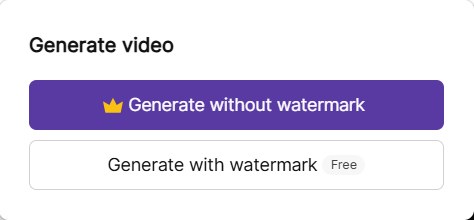
We chose the free option. The video was ready in about two minutes, and Pictory also sent an email with a direct link to it. Our credit balance had not moved: still 50. Here is what we got:
- Full HD: our downloaded file was 1920×1080 at 30 frames per second, 2 minutes 7 seconds long, about 19 MB. That is better than many free plans, which often limit exports to lower resolutions.
- A small watermark: a "Created with Pictory" badge sits in the bottom-right corner of every scene. It is discreet, but it is always there.
- A Pictory outro: the free video ends with a short Pictory logo screen after our own end card.
The download page also gives you a share link, an embed code for websites, and a music clearance code. If you publish on YouTube, generate that code: it proves you have the right to use the background music, which helps if YouTube flags the track.
What could be better
- Length control: it ignored our 30 to 60 second target and made a two-minute video.
- Reliability: one failed attempt out of two. No credits were lost, but it cost us a few minutes.
- Some scenes are generic: stock footage can feel familiar, and a few on-screen texts were small or low-contrast.
- Watermark and outro on the trial: fine for testing, but for a real channel you will want a paid plan.
The verdict
Pictory did what it promises. From a link to one of our articles, it wrote an accurate script, matched it with relevant visuals and a natural voice, added a call to action to our site and exported a Full HD video in minutes, without any editing skills. The trial is generous enough to judge the quality, with a small watermark and a Pictory outro as the main limits. If you write blog posts and want them on YouTube, Shorts or Pinterest too, it is one of the fastest ways to repurpose them. For a broader look at the workflow and other tools, see our guide on how to turn a blog post into a video with AI or the Pictory vs Synthesia comparison.